
APPLICANT: How Do I Use the Saved Application Feature?
This article is for Staff Me Up Applicants. Here we will explain what the Saved Application feature is and how you can use it to streamline your job application process.
What is a Saved Application?
This feature allows you to save application details so they can be easily reused for future job applications. The details that can be saved include your Selected Credits, Cover Letter, Resume, and "Why I am Perfect" responses. Using this feature will save you valuable time when applying to jobs!
Please note: This feature is only available for active Premium members. It will not be available if you are on a basic (free) membership or if your current premium membership is on pause. Your saved applications will reappear if you choose to upgrade again.
How to Create a Saved Application
When on the application page, fill out all the necessary details.
Before submitting, navigate to the lower right-hand side of the page.
Check the box next to Save as a New Application.
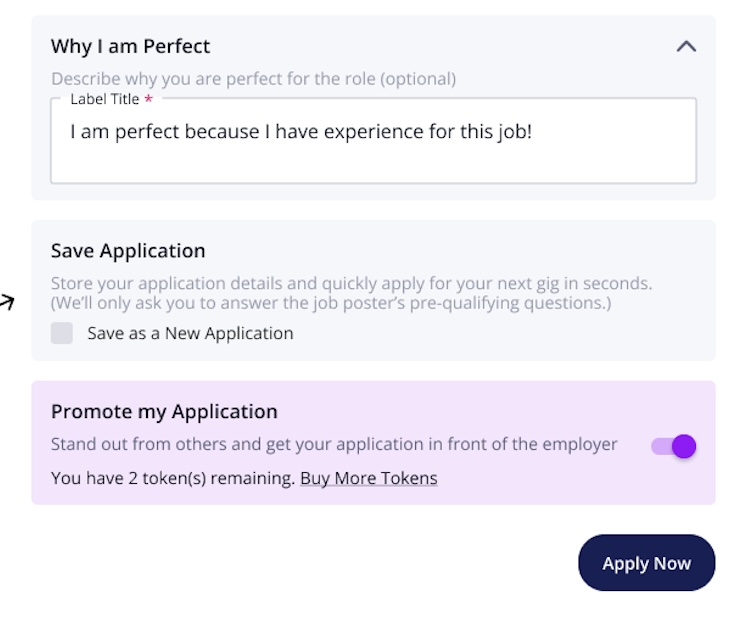
Click Apply Now.
Your application details will now be saved.
How to Manage Your Saved Applications
You can view, edit, or delete your Saved Applications at any time from your profile.
Navigate to your Profile.
Select the ‘Saved Applications’ tab on the left-hand side.
Here you will see a list of your saved applications. To make changes, click the three dots to the right of the application you wish to update.
You can then choose to Edit or Delete that saved application.
How to Apply With a Saved Application
The next time you apply for a job, you can use your saved details to auto-populate the application form.
Find a job you wish to apply for and begin the application process.
You will see an option to ‘Apply with a Saved Application’.
Select the specific saved application you wish to use from the dropdown menu.
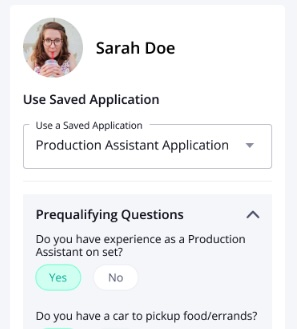
The application form will automatically fill in with the details from your saved application.
Review all the pre-filled information to ensure it is current and correct for this specific job.
Submit your application as usual.
Frequently Asked Questions (FAQ's)
Can I save multiple applications?
Yes, Premium members can save multiple application templates. This is particularly useful if you are applying for different types of positions that require tailored information.
What happens to my Saved Applications if I downgrade to a basic membership?
If you downgrade to a basic membership, you will no longer be able to access or use your Saved Applications.
How secure are my Saved Applications?
Your privacy and security are our top priorities. Saved Applications are stored with the same level of security as the rest of your profile information on Staff Me Up.
Can I use Saved Applications on any device?
Yes, the feature works across the web, mobile web, and the mobile app for a consistent experience. However, Premium users can only manage (edit/delete) their saved applications on the web version, not directly through the mobile app. Basic users who attempt to use the feature will see an upsell message prompting them to upgrade.