
How do I change my subscription or billing information?
This article provides a guide on how to manage your subscription directly from your account settings. Here you can find instructions on how to change your subscription type, update your billing information, or pause or cancel your membership.
How to Cancel Your Subscription
To begin the cancellation process, please follow these steps:
After signing in, locate and click on your profile picture thumbnail in the lower left-hand corner to access the dropdown menu.
Within the menu, navigate to "Subscription & Billing" and select "Edit Subscription."
Here, you'll have the option to select Cancel.
Should you choose to cancel, you will maintain access to Premium features until the end of your current billing cycle.
Finalizing Your Cancellation
After selecting to cancel your membership, you will need to complete the following steps:
Answer the required field about your reason for leaving.
Check the box next to “I understand that by proceeding, I will lose access to my Premium benefits at the end of my current billing term.”
Click “Cancel my subscription”.
Type the word CONFIRM to finalize the cancellation.
How to Pause Your Subscription
You have the ability to pause your membership for a period of 1 to 3 months. To do this, navigate to the "Edit Subscription" page and select the Pause option.
Should you decide to pause your subscription, please be aware that the renewal date will be displayed on your account. It is important to note that you will not receive a reminder notification about your subscription renewal. We recommend setting a personal reminder to ensure you don't miss the next billing date.
How to Reactivate a Paused Subscription
If you've paused your subscription and wish to resume it, follow these steps:
Locate and click on your profile picture thumbnail in the lower left-hand corner to access the dropdown menu.
Within the menu, navigate to "Subscription & Billing".
You'll find the option to reactivate your subscription there.
How to Change Your Subscription Type
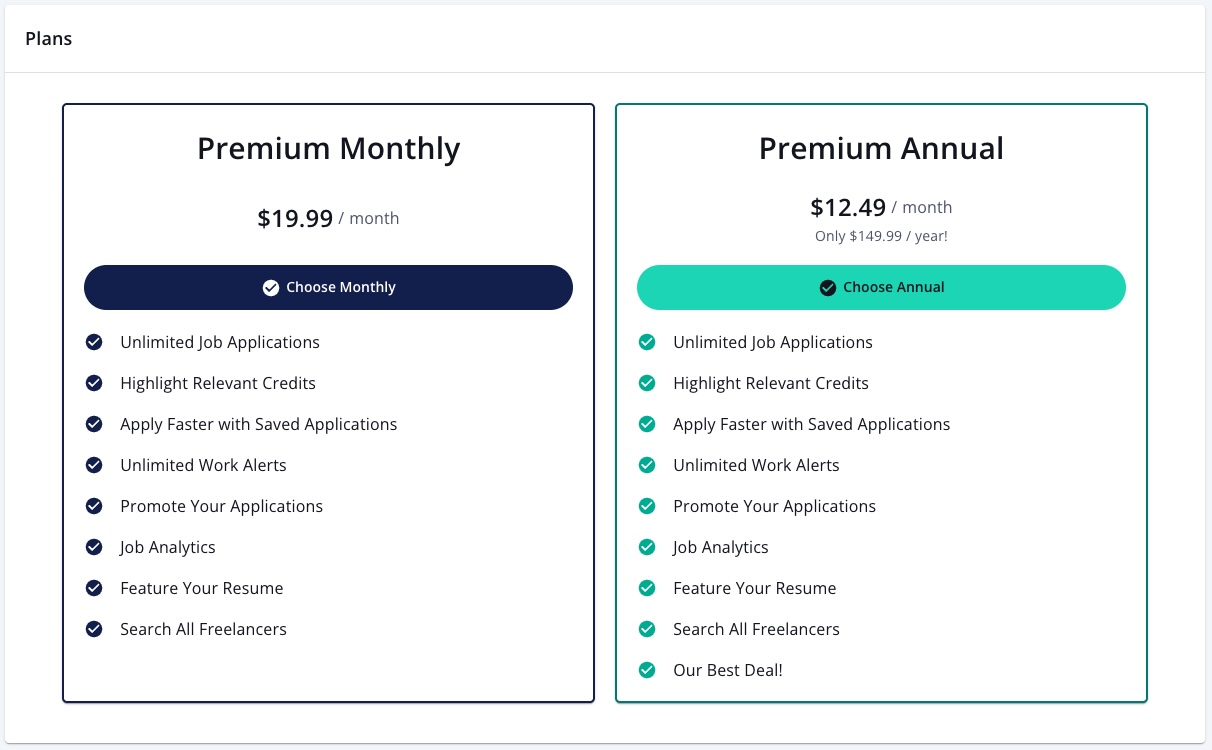
You have the option to switch your subscription from a Monthly to an Annual Membership, which may offer potential savings.
Locate and click on your profile picture thumbnail in the lower left-hand corner to access the dropdown menu.
Within the menu, navigate to "Subscription & Billing".
Navigate to the Plan details area, and select the 'Upgrade' option within the Annual Membership section.
Once your payment is successfully processed, your annual membership will be activated right away.
How to Update Your Billing Information
To update your payment method, follow these steps:
After signing in, locate and click on your profile picture thumbnail in the lower left-hand corner to access the dropdown menu.
Within the menu, navigate to "Subscription & Billing" and select "Edit Billing Information."