
JOB POSTER: How Do I Post a Job?
This article provides a comprehensive guide for Job Posters on how to create, manage, and publish job listings on Staff Me Up. Whether you're posting a single position or multiple roles for a large production, this guide will walk you through the process step-by-step.
Who can post a Job?
Staff Me Up offers a free plan for job posters, which is included with every new account. There are also other plan types available for job posters and their teams, check them out here!
How to Post a Job
Login to your Staff Me Up account and navigate to the Hire tab and select Post a Job.
If you are posting multiple roles for a single project, it's recommended to first create a new production. Click on +New Production on the right-hand side.
Enter the Production Information, including the Production Name, Company, Production Type, and Network. Then, click Create Production.
If you are a member of an enterprise team: When creating a new production, ensure you select your company account under "Share This Production with..." so that your teammates can view the job posting and review applicants from their accounts.
Within your production, click +New Job to begin adding positions.
A drop-down menu will appear. Fill in the required fields: Position Name, Location, and Start/End Dates, then click Add.
After adding the job, you will have two options: Publish to Job Board or Save And Keep Private. All new job posts are set to private by default.
Save And Keep Private will only be visible to you until you publish.
You can then add and review further details before publishing, such as the pay rate and job duties. You can also add pre-qualifying questions, which should be in a Yes/No format.
To save time, you can reuse a job description from a previous listing within your company by using the Reuse From Previous Listing drop-down menu.
Once you have filled out all the necessary fields, select Publish to Staff Me Up. Your job will then be public and visible to applicants. The production name and company will not be displayed on the public job post.

What If I Don't See the Position I Want to Post?
If you can't find the exact job title you are looking for, we recommend the following workaround:
Post the job using the closest possible position title available.
In the "Additional Position Info" or description box, specify the exact job title. For example, if you are hiring a "Technical Streamer" and it's not listed, you could post the position as "Producer" and then write "Technical Streamer" in the description. This helps applicants better understand the role and assess their qualifications.
Cloning a Job
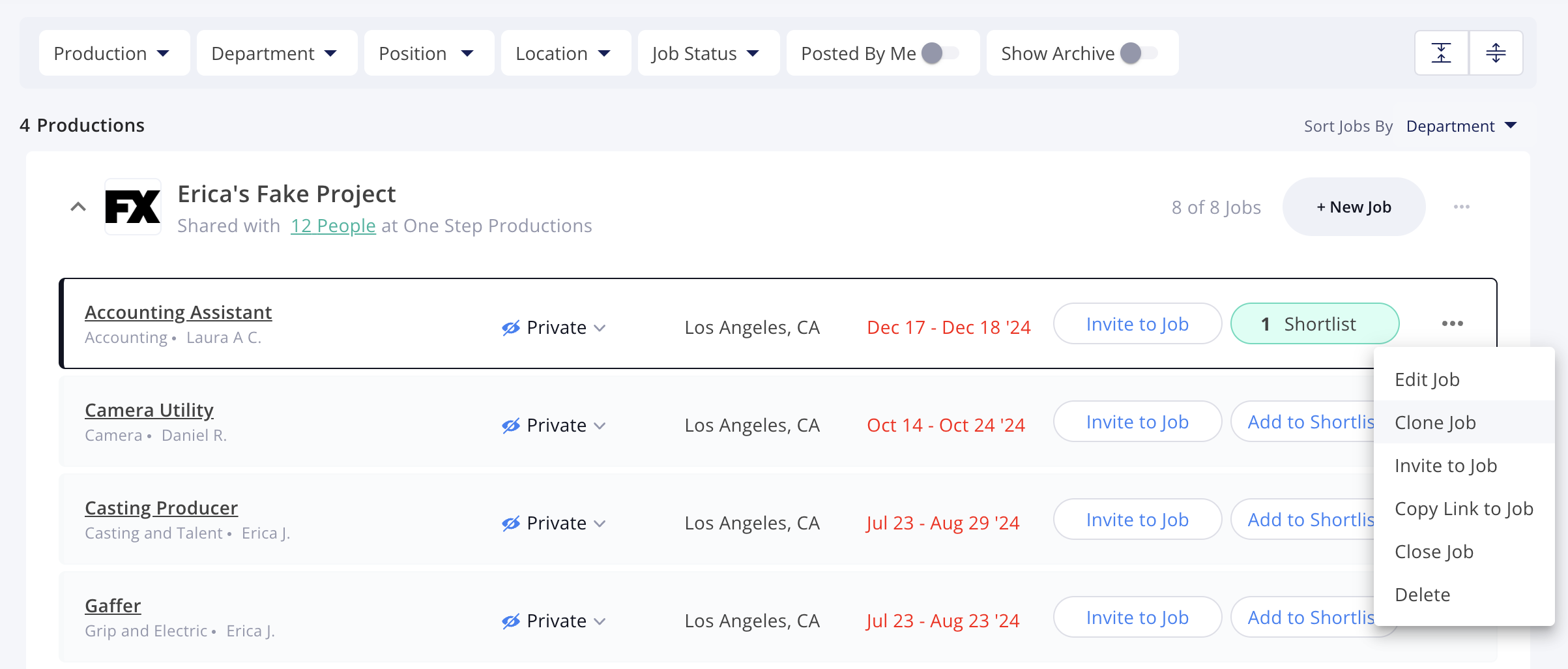
To save time when re-posting a similar role, you can use the "Clone Job" feature.
Click the three dots ("...") next to the job you wish to re-post.
Select "Clone Job".
Enter the new dates and any other updated information, and then post the job.
Editing a Job Post
Most fields on a job post can be edited after it has been created.
Click the overflow menu or, "..." button, to the right of the job post and select Edit.
Please note that once a job is live, you cannot change the location. If you need assistance with editing a live post, please contact our support team.
Closing a Job Post
Once you have filled a position, you can close the job to stop receiving new applications.
Click on the "..." button next to the relevant job post and select Close Job.
A survey will appear, allowing you to confirm if you hired someone through Staff Me Up and to send a "Thank You" note to all applicants.
Tips for Faster Job Approval
(Non-Enterprise Posters)
Verify Yourself: If it's your first time posting, complete the verification link.
Use Real Names: Ensure your profile has your first and last name. Company names should be used in the company field on the job listing. If you need to keep the company name private, check the “Confidential: don’t reveal company to applicants” box.
Use Your Real Email Address: This is for verification and communication purposes with our team and will not be visible to applicants. Check your inbox/spam folder if you're waiting on your job being approved, we may have follow-up questions.
Provide Realistic Rates: Listings with large pay ranges will not be approved.
Mind Our Business Hours: Job listings are approved Monday through Friday, from 9:30 AM to 5:30 PM PST.